![dineplan_horizontal_dp_blue-1.svg]](https://learn.dineplan.com/hubfs/dineplan_horizontal_dp_blue-1.svg)
Before you begin
- You'll need the SMS Top Up account permission to buy credits — ask an account Admin if you don't have access.
- The steps differ slightly depending on whether your account is on debit order. You'll see within your account which option applies to you.
Steps for clients on Debit Order
- Log into your Dineplan dashboard.
- Click your Notification Credits balance, top right or go to Settings > SMS Settings
- SMS Settings opens — the top-up panel is on the right.
- Enter how many credits you want (500 to 5,000).
- Tick to agree the amount will be added to your debit order, then click Top-up SMS Credits.
- Click "here" to download your invoice.
Expected result
Your new message credits balance shows straight away.
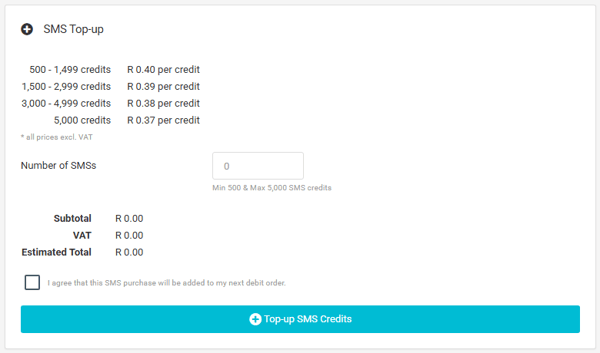
Don't see "I agree that this SMS purchase will be added to my next debit order"? You're not on a debit order — use the EFT route below instead.
Steps for clients on EFT
- Log into your Dineplan dashboard.
- Click your Notification Credits balance, top right or go to Settings > SMS Settings
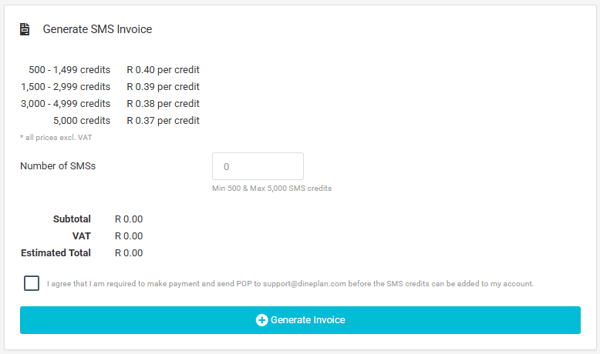
- Enter how many credits you want (500 to 5,000).
- Tick to agree, then click Generate Invoice.
- Click "here" to download your invoice.
- Pay it, then send the proof of payment to support@dineplan.com.
Expected result
Your credits are loaded once we've received your proof of payment.
Need more than 5,000 credits, or don't have access to buy credits yourself?
Email support@dineplan.com with the number of credits you need. Debit order accounts get credits instantly with an invoice provided; non-debit accounts need to pay the invoice first. Rate per credit is less, the bigger the bundle-size you buy. See Message Credits for pricing.