![dineplan_horizontal_dp_blue-1.svg]](https://learn.dineplan.com/hubfs/dineplan_horizontal_dp_blue-1.svg)
-
The new Specials tab in account.dineplan.com allows you to:
- Create and submit specials for review and publishing by the Dineplan team.
- Save specials as a draft.
- View all the specials in your account, including their status and summary information.
- Edit Specials.
- Delete specials.
Please note: Your user profile will need the Settings permission for submitting and managing your Specials.
Creating and submitting a New Special:
- While logged in on your Dineplan account, select Settings from the menu bar on the left of the screen.
- From the sub-menu on the right, select Advertise Specials.
- In the top right corner, click on the Add New Special button.
- On the new page that opens, click on the Upload Special Offer Image* block to choose and upload the image relevant for that special. Once the image has loaded, a window with a cropping tool will open for you to crop the image to the correct size.
IMPORTANT TO NOTE REGARDING IMAGES: Uploading menus, flyers or images with existing text will not be approved. Only clear, unedited photos of your restaurant or food can be used for the special to go live. The recommended dimensions for these images are 300px width × 600px height, which is designed to work with both the app and website.
-
- Special Title* - the name of your promotion/event.
- Description and/or T&Cs* - Share details about your promotion or event with guests here. Use this space to highlight the main attraction, what guests can expect, and what makes it different from your usual offerings. Be sure to include any limitations or requirements guests may need to know in order to qualify.
- Price* - Add the relevant pricing or offer applicable to your special, such as R395 per couple, Two for the price of one, etc. If no price is to be added, simply add a '-' in this field.
- Activation Date - The date you want the special to start showing to guests. You can submit a special in advance and set it to start displaying from a later date.
- Date Range* - The start and end dates when your special will be available to guests. The Date Range will automatically default to today as the start date and one month from today as the end date. For a single-day special, the start and end dates will be the same. Even for an ongoing special without a set end, you’ll need to provide an end date. You can always extend or reactivate the special once it expires.
- Days of the Week* - Indicate which days the special is available.
- Time Range - The default is set to "Apply to all times". Uncheck the box to indicate specific Start and End times.
- Covers Range - The default is set to "Apply to all covers". Uncheck the box to indicate if a special is only for couples or larger groups.
- Full name* - fill in your full name. This is necessary for us to know who to contact if any adjustments need to be made for your special to be approved.
When you've completed the above, you can choose to Save Draft if you want to keep your progress but are not ready to submit the special yet. Otherwise, if you're ready for your Special to be submitted for review and made live, select the Submit for Approval button.
Once the submission has been completed, a notification will be sent to the Support Team advising them of your submission.
Dineplan will review the information and image you have provided and either 'approve' the special or contact you to make minor, necessary adjustments. Please allow up to 1 business day for reviews to be completed.
Once a special has been reviewed successfully and published, you will receive an email notification confirming that your special has been approved.
Please note - All featured specials must be bookable online for guests. Specials connect with your booking calendar on the Dineplan website and app, showing the available dates, times, and number of guests they apply to while guests are in the booking process. Specials that are submitted for dates with Exceptions or for areas that aren’t bookable will not be approved.
Viewing the status of your Special submissions:
When navigating to the Specials tab, there are three sections to view and manage your Specials:
- 📝 Drafts - These are specials you’ve added and saved but haven’t submitted for approval yet.
- ⌛Awaiting Approval- You’ve submitted your special and it’s currently waiting to be reviewed by the Dineplan team.
- ✅ Approved - Specials that you’ve submitted that have been approved by the Dineplan team and are published. They will appear on your listing from the activation date you've selected. These specials are further separated into the following groups:
- Currently Live - Specials that are active and displaying on your listing on the Dineplan website and app. When guests search for specials in your area, you will be included in the list of current restaurants with specials available.
- Upcoming – Specials that are scheduled to start on a future activation date. Once the activation date is reached, the special will automatically move to the Currently Live tab and appear on your listing on the Dineplan website and app.
- Expired - Specials that have reached the end date provided. They will no longer appear on your listing on the Dineplan website and app.
Editing a Special:
From time to time, you may need to update your specials, such as extending the date range it is available or adjusting the price.
Only specials listed under Drafts or Approved can be edited.
If you need to make changes to a special that is in the Awaiting Approval section, you have a few options:
- Delete the special and move it back to Drafts to edit and resubmit it.
- Wait for the special to be approved by the Support team and then edit it.
- Contact the Support Team and let us know what changes need to be made.
When editing a special that’s already been approved, changes to the following fields will keep the special active and not require resubmission for approval:
- Activation Date
- Date Range
- Days of the Week
- Time Range
- Covers Range
Making changes to the image, title, description or price of a special will unpublish it and it will need to be resubmitted for approval.
Tip: Updating the date range on a previously approved special that has expired will automatically reactivate it.
Deleting a Special:
If you need to unpublish a special that is currently live on your listing or you would like to remove old expired specials from your dashboard, you can use the Delete option.
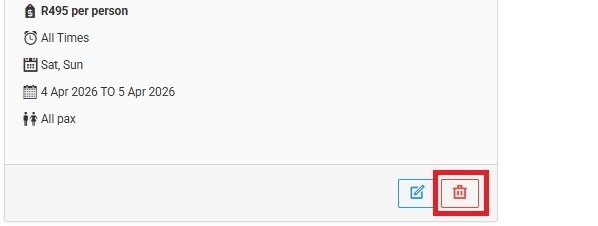
Simply go to the Special you would like to unpublish or remove and select the “Bin icon”, as seen below:
A new window will open, with two options:
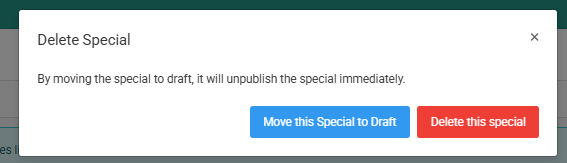
If you’d like to update and republish the special later, choose the option to move it back to Draft.
If you’d prefer to remove it completely, select Delete this special. Please note that once a special has been deleted, this action is permanent and it cannot be restored.