![dineplan_horizontal_dp_blue-1.svg]](https://learn.dineplan.com/hubfs/dineplan_horizontal_dp_blue-1.svg)
Before you get started:
- you will need the Settings permission to submit specials directly in your dashboard.
- alternatively, you can submit via this form: https://get.dineplan.com/add-a-special
- specials/events should be bookable on Dineplan
Submitting a special:
-
Go to Settings > Advertise Specials https://account.dineplan.com/settings/specials
- Click the Add Special button on the top right hand side.

Elements to enter:
- Photo - a special/event must have a photo - click the upload section to select a file from your computer. This needs to be a plain photograph - no artwork, logos, menus, or collages. The image crops to square.
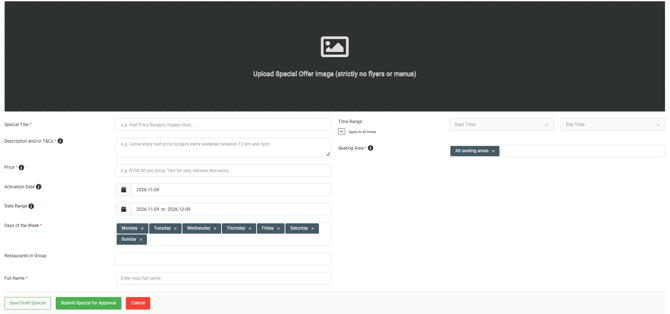
- Special Title* - the name of your promotion/event.
- Description and/or T&Cs* - Share details about your promotion or event with guests here. Use this space to highlight the main attraction, what guests can expect, and what makes it different from your usual offerings. Be sure to include any limitations or requirements guests may need to know in order to qualify.
- Price* - Add the relevant pricing or offer applicable to your special, such as R395 per couple, Two for the price of one, etc. If no price is to be added, add a '-' in this field.
- Activation Date - The date you want the special to start showing to guests. You can submit a special in advance and set it to start displaying from a later date.
- Date Range* - The start and end dates when your special will be available to guests. For a single-day special, the start and end dates will be the same. Even for an ongoing special without a set end, you’ll need to provide an end date. You can always extend or reactivate the special once it expires.
- Days of the Week* - Indicate which days the special is available.
- Time Range - The default is set to "Apply to all times". Uncheck the box to indicate specific Start and End times.
- Seating Area - The default is set to "All Seating Areas" but if your special/event only applies to certain areas, select those from the dropdown.
- Full name* - fill in your full name. This is necessary for us to know who to contact if any adjustments need to be made for your special to be approved.
When you've completed the above, you can choose to Save Draft if you want to keep your progress but are not ready to submit the special yet. Otherwise, if you're ready for your Special to be submitted for review and made live, select the Submit for Approval button.
Dineplan Support will review the information and image submitted and either 'approve' the special or contact you to make minor, necessary adjustments.
Once a special has been reviewed successfully and published, you will receive an email notification confirming that your special has been approved.
**If you'd like a hand setting up custom availability and/or pre-payments for a special/event, please reach out to support@dineplan.com.