![dineplan_horizontal_dp_blue-1.svg]](https://learn.dineplan.com/hubfs/dineplan_horizontal_dp_blue-1.svg)
What it is
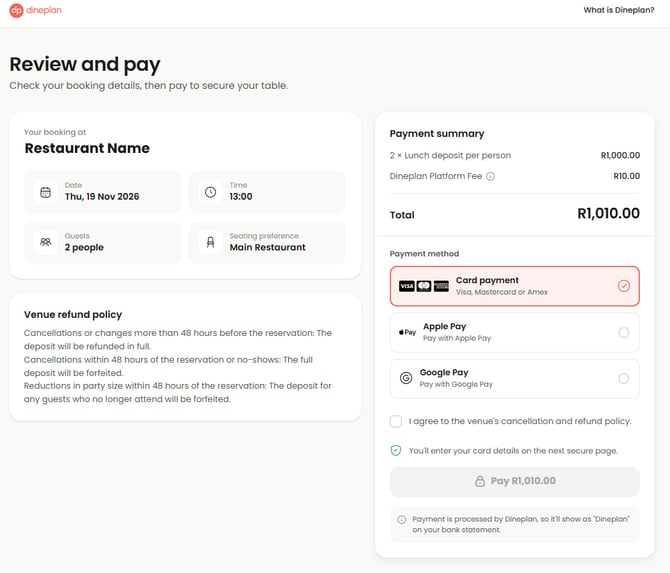
Reservation payments let you charge guests a deposit or full prepayment when they book. You can also send them a payment request afterwards. Guests pay on a secure checkout page, much like buying movie or plane tickets online. The payment is linked to their booking, and Dineplan pays the money out to you after the booking date.
Who can use it
Reservation payments are available on the [Lite, Essential and Premium] packages. Card fees depend on your package. Someone with payment settings permission must set up payment items and templates before guests are asked to pay. If no payments are active on your account, guests won’t automatically be asked to pay when they book online.
Key capabilities
- Ask for a deposit or a full prepayment to secure a booking.
- Set rules for when a payment applies, such as day of the week, time, party size or a minimum number of guests
- For manually inputted bookings, you control what is requested and can enter a custom amount. For online bookings, the rules are automated.
- See at a glance which bookings are paid and a full audit on the booking.
- Get payouts with a payment report that shows every payment, its booking, and the fees
Key concepts
Payment items and templates. A payment item is what the guest pays for (for example, “Deposit – R200 per person”). A payment template controls when that item applies and what the guest sees.
Payment methods. Apple Pay, Google Pay, Visa & Mastercard as standard. Amex optional. EFT optional.
Platform fee. A non-refundable flat rate per payment made - a Dineplan charge to the diner for security and maintenance of the platform.
Payments belong to one booking. Each payment is linked to the booking it was made for. It can’t be moved to a different booking or split across several bookings. If the date or party size changes, the payment request doesn’t update on its own. You may need to send a new one or sort out the difference yourself. If you move the booking to another date, the payment stays allocated to the booking.
When a booking shows as paid. Card payments show on the booking straight away. EFT payments can take a few days to clear before the booking shows as paid.
Payouts. Dineplan pays the money out to you on the next business day after the guest’s booking date. Each payout comes with a payment report listing the payments, the bookings they belong to, the total paid to you, and the settlement and transaction fees.
Proof of payment vs tax invoices. Dineplan can give a guest proof of payment for a specific booking, but this isn’t a tax invoice. The money is paid out to you, so if a guest needs a tax invoice for their deposit, they need to ask your restaurant for it.
What Dineplan sets up vs what you manage
You manage:
- Your payment items and templates (our Support team will always help with setting up or troubleshooting)
- Your payment and refund policy, including when balances are due and what happens if a guest cancels
- Sending payment requests and collecting outstanding balances
- Starting refunds
Dineplan handles:
- The secure checkout
- Processing card and EFT payments
- Paying the money out to you
- Processing a refund back to the guest’s original card once you start it within your policy
Dineplan Support can’t send payment requests or take payments for you. If a guest needs to pay a balance or needs a new payment link, they’ll need to contact you directly.